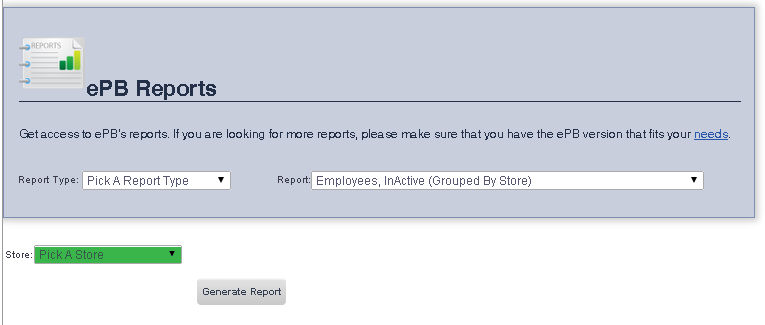
The Employees, Inactive (Grouped By Store) Report allows you to view a complete list of all of your inactive employees' activities, grouped by store.
To get to the Employees, Inactive (Grouped By Store) Report select Reporting from the Main Toolbar and then click View/Print Report. On the View/Print All Report Page, select Employees, Inactive (Grouped By Store) from the Report drop down menu.
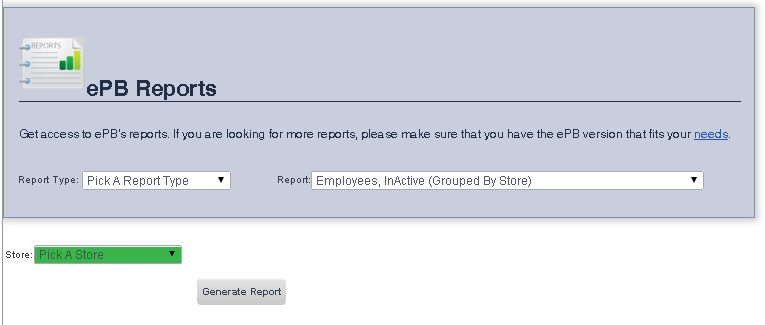
To view a report for all stores:
1. Ensure that Pick a Store is selected from the Store drop down menu.
2. Click Generate Report.
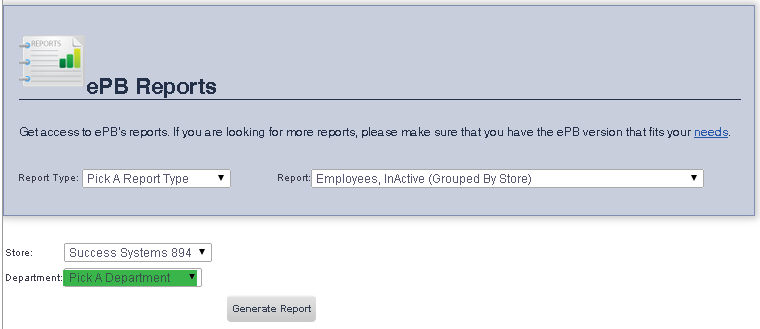
To view a report for a particular store:
.
frmReportscr3.aspx