Fuel Sales By MOP and Grade (Grouped By Store)
Overview
The Fuel Sales By MOP and Grade (Grouped By Store) Report allows you
to view each store's fuel sales by grade and method of payment.
To get to the Fuel Sales By Grade (Grouped By Store) Report select Reporting from the Main
Toolbar and then click View/Print
Report. On the View/Print All Report,
select Fuel Sales By Grade (Grouped By
Store) from the Report
drop down menu.
Viewing a Report for all Stores
To view a report for all stores:
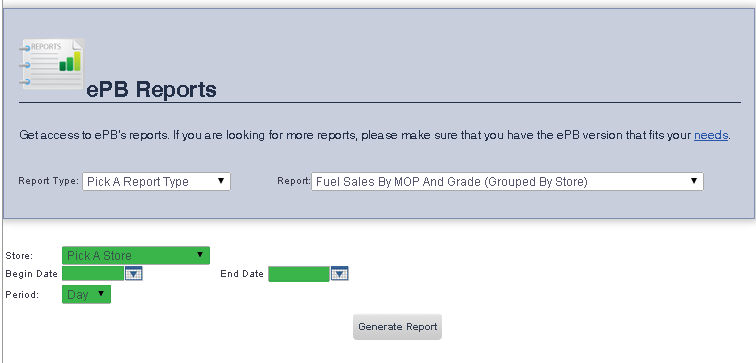
- Ensure that Pick a Store
is selected from the Store
drop down menu.
- Enter the date you would like the report to begin on into the Begin Date text box, or select one
using the calendar tool to the right of that text box.
- Enter the date you would like the report to end on into the End Date text box, or select one
using the calendar tool to the right of that text box.
- Ensure that Day is
selected from the Period
drop down menu.
- When you are finished, click the Generate
Report button.
Viewing a Report for a Particular Store
To view a report for a single store:
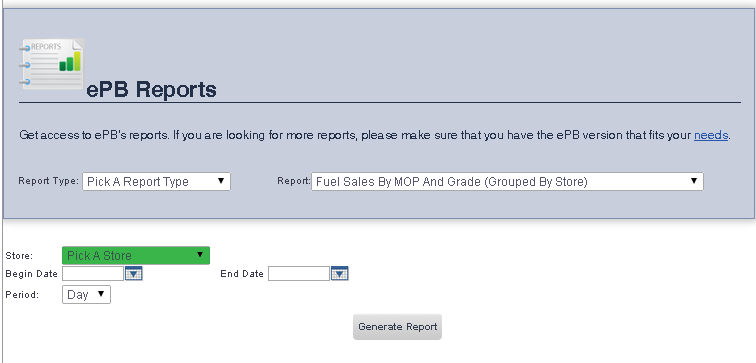
- Select the store you would like to view a report for from the Store down menu.
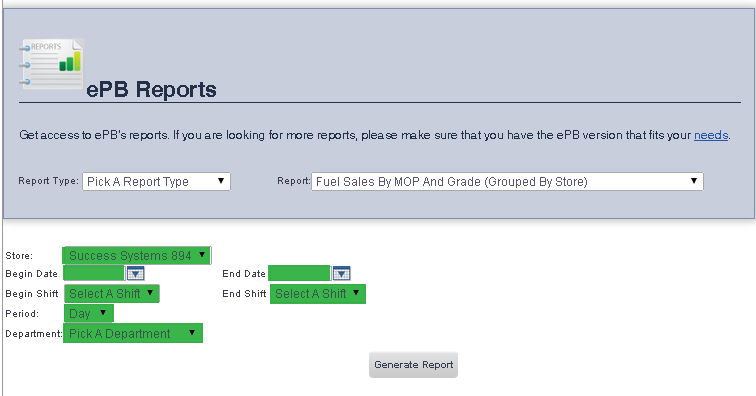
- If you would like to view the report by a date range, enter the
begin date into the Begin Date
text box, or select one using the calendar tool to the right of that
text box, and then enter the end date in the End
Date text box, or select one using the calendar tool to the
right of that text box.
- If you would like to view the report by a shift range, select shift
you would like the reports to begin on from the Begin
Shift drop down menu, then select the shift you would like
the reports to end on from the End
Shift drop down menu.
- If you have chosen to view the report by a date range, select Day from the Period
drop down menu. If you have chosen to view the report by a shift
range, select Shift from the
Period drop down menu.
- If you would like to view the report for a particular department,
select the department you would like to view the report for from the
Department drop down
menu. If you would like to view the report for all of the departments
in a store, ensure Pick a
Department is selected.
- When you are finished, click the Generate
Report button.