Stores (Grouped By Employee, Inactive)


Overview

Stores (Grouped By Employee, Inactive) Report allows you to view a complete list of all of your stores, sorted by inactive employees.


Feature Available for:  ePB Lite, ePB Premium, ePB Books, and ePB Accounting


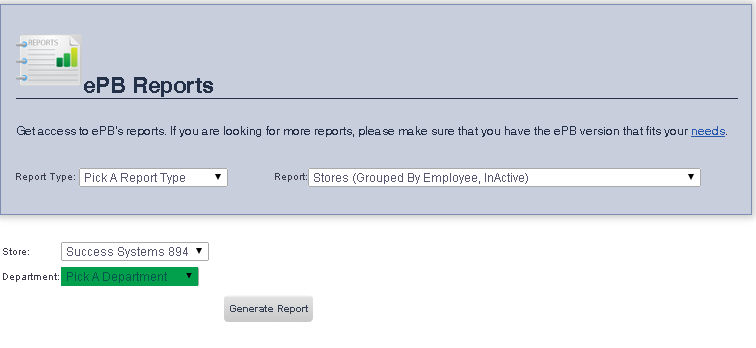
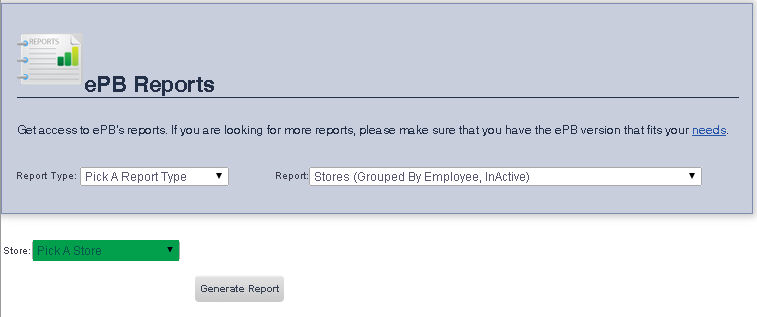
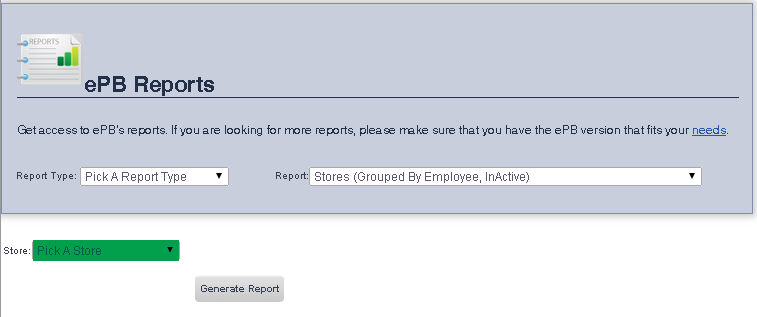
To get to the Stores (Grouped By Employee, Inactive) Report select Reporting from the Main Toolbar and then click View/Print Report.  On the View/Print All Report Page, select Stores (Grouped By Employee, Active) from the Report drop down menu.

Viewing a Report for All Stores

To view a report for all stores:


1. Ensure that Pick a Store is selected from the Store drop down menu.

2. Click Generate Report.

Viewing a Report for a Particular Store

To view a report for a particular store:
 

  1. Select the Store you would like to view the report for from the Store drop down menu.


  1. If you would like to view a report for a particular department, select the department you would like to view the report for from the Department drop down menu.  If you would like to view a report for all departments, ensure that Pick a Department is selected.
  2. When you are finished, click the Generate Report button.


frmReports.aspx and frmReportWrapper.aspx